Pipeline Reports
Generating Project Reports and Bill of Quantities. CivilCAD features a comprehensive reporting module that automatically aggregates your layout geometry, vertical profiles, material parameters, and e…

Generating Project Reports and Bill of Quantities
CivilCAD features a comprehensive reporting module that automatically aggregates your layout geometry, vertical profiles, material parameters, and excavation depth ranges into engineering schedules and material take-offs.
General Report Workflow
Regardless of the specific document type you need, the generation process always follows these core steps:
- Enter the Report Module: Navigate to the top menu and select Pipelines ➡️ Reports.
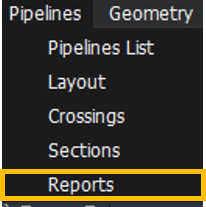
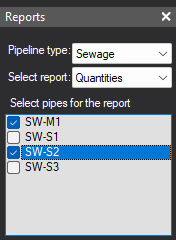
- Configure Pipeline and Report Type: Use the dropdown fields to select your active Pipeline type (e.g., Sewage) and choose the specific layout report you wish to compile from the Select report list.
- Select Your Target Networks: Use the checkbox panel to choose exactly which design lines are included in the compilation (e.g., ticking
SW-M1andSW-S2). - Compile the Data: Click the Apply button at the bottom of the module settings panel to automatically generate the digital data sheet.
- Export to External Software: Click the Excel icon located in the bottom-left corner of the window to instantly export the computed layout directly into a standard Microsoft Excel spreadsheet file.

Report Types and Data Structures
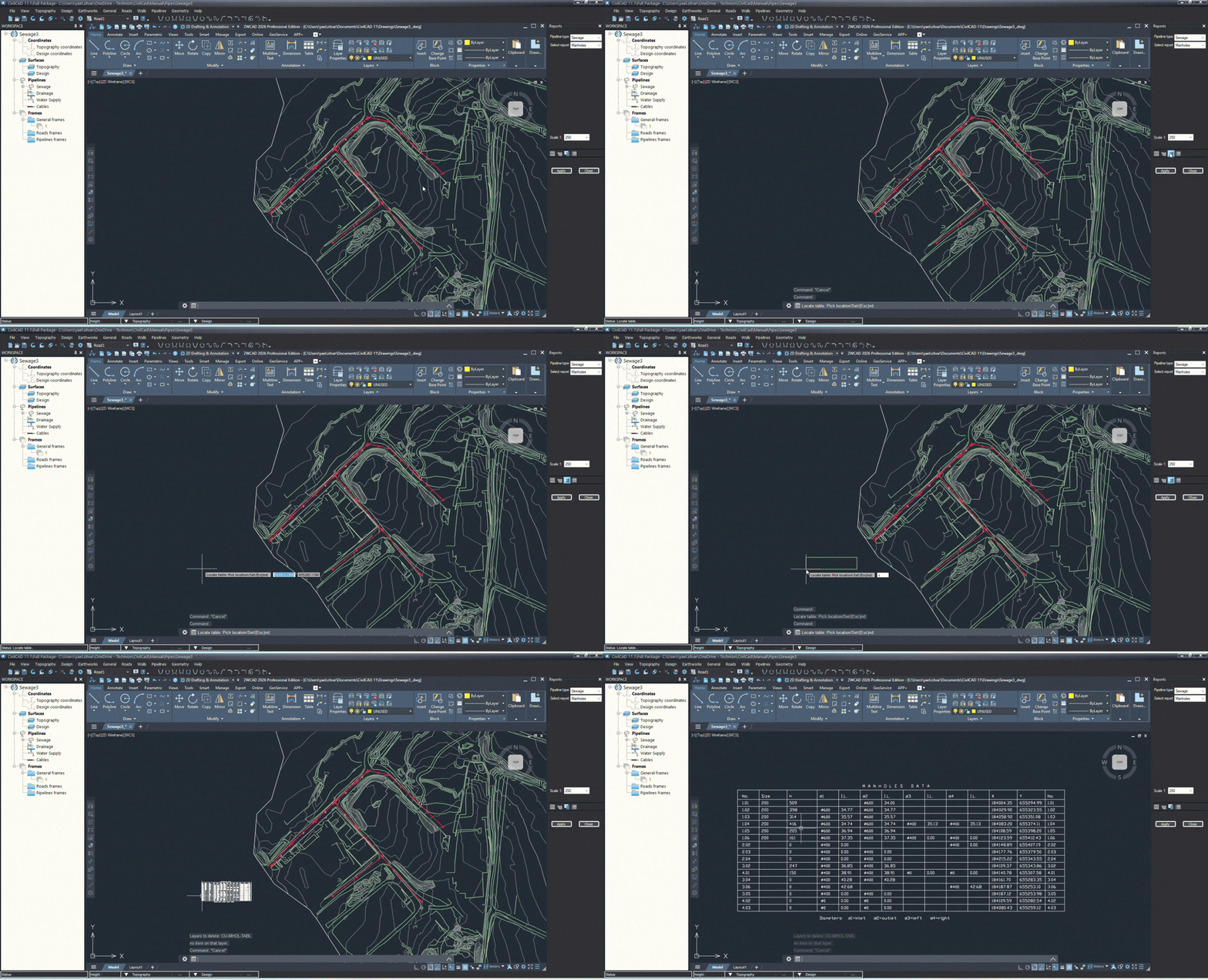
Manholes Data Report
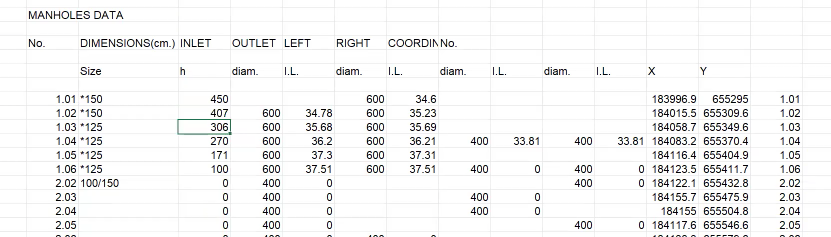
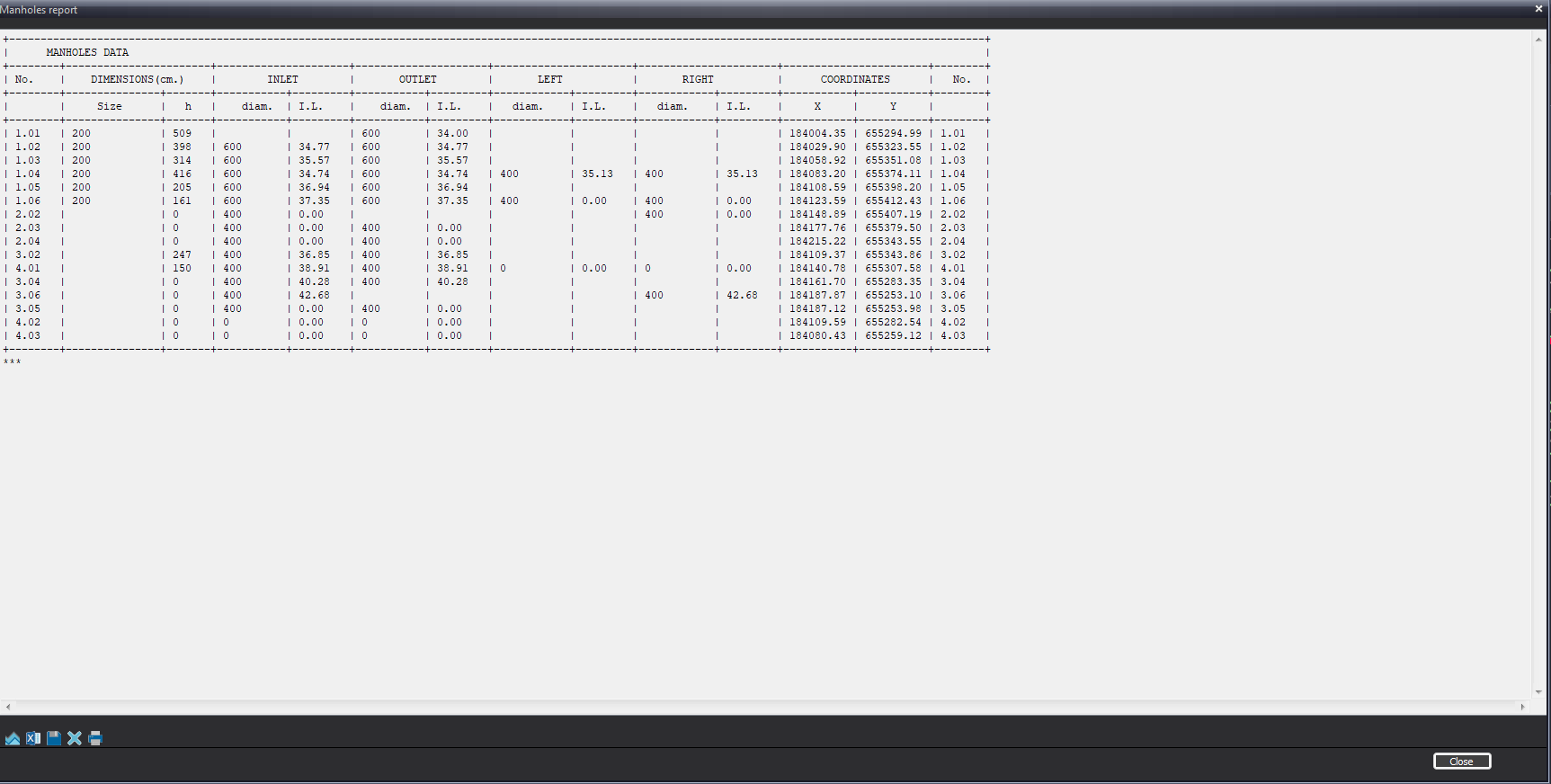
- This schedule extracts individual structural node properties across your project coordinate space. It formats structural properties using specific notation rules within the Size column:
- Round Manholes: Denoted with an asterisk prefix followed by the diameter value (e.g.,
*125or*150). - Rectangular Manholes: Represented as a ratio split (
Height / Width), where the first dimension represents the wall perpendicular to the pipeline direction and the second dimension represents the wall parallel to the pipeline path.
- Round Manholes: Denoted with an asterisk prefix followed by the diameter value (e.g.,
Project Quantities Report
This option acts as your structural Bill of Quantities (BOQ). CivilCAD filters data for all selected pipes, manholes, and external drops, sorting total pipeline linear lengths automatically into specific rows based on their Depth ranges (m), internal Diameters (mm), and assigned Materials (such as PVC).
Pipes Report
A clean summary document tailored specifically for ordering components. It lists the total combined linear meters of all pipes inside the project, grouping them cleanly by matching diameters and structural material types.
Detailed Data Report
This option exports every raw engineering parameter, coordinate point, and calculation cell directly out of your active Manhole's Details Table for the chosen pipes, while additionally appending full tabular data blocks for Existing Ground Levels, Design Ground Levels, and absolute Manhole Coordinates (X, Y) all onto a single combined sheet.
Embedding Tables Directly into CAD Layouts
If you prefer to showcase these data sheets visually inside your blueprint sheets, use the embedded table tool:
- Click the Locate Table icon located inside the Reports window toolbar.
- Move your mouse onto your active drawing layout area, click on your desired landing position, and press S on your keyboard to snap and insert the fully rendered schedule block.
- Adjust the insertion scale settings inside the command line prompt to easily make the text block larger or smaller to fit your title block constraints perfectly.
How Did We Do?
Pipeline Crossing