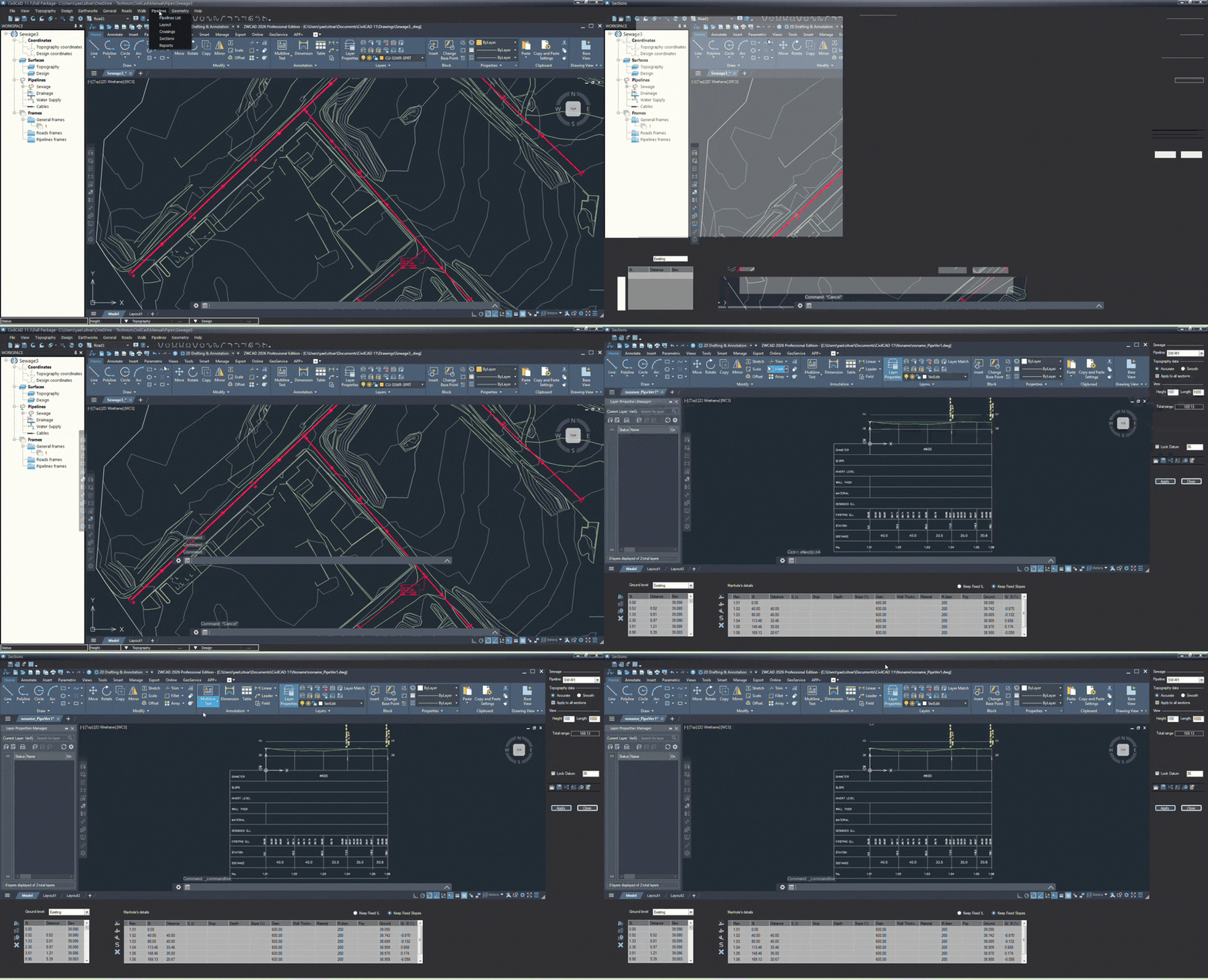
What is Sections?. The Sections module is where you design and analyze the vertical profile (longitudinal section) of your pipelines. This tool lets you manage slopes, invert levels, and ground cover…
Updated
by Yael Zitvar
What is Sections?
The Sections module is where you design and analyze the vertical profile (longitudinal section) of your pipelines. This tool lets you manage slopes, invert levels, and ground coverings to ensure your design meets engineering standards and gravity-flow requirements.
How to Open Sections
Action: Go to the top menu, select Pipelines, and click Sections.
💡 Note: Clicking this will automatically launch a separate CivilCAD drawing window dedicated entirely to displaying and editing your vertical section data.
Adjust the Section View
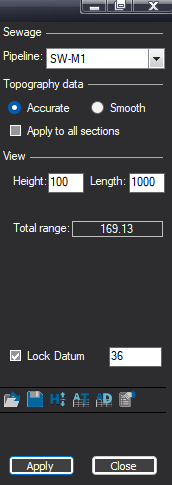
Before diving into the design, you need to configure how the profile is displayed on your screen and sheets. The settings panel located on the right side of the interface.
Select Your Pipeline Choose the specific pipeline you want to work on from the Pipeline dropdown list (e.g., SW-M1).
Choose Topography Data Smoothing Under the Topography data section, select whether you want the ground profile line to display as Accurate (following every vertex point exactly) or Smooth (filtering out minor surface irregularities for a cleaner display). Check Apply to all sections if you want this rule to govern every pipeline in the project.
Configure the View Scale Under the View section, input your desired vertical and horizontal display scales.
Pro Tip: A standard practice for pipeline profiles is setting the scale ratio to Height: 100 and Length: 1000, allowing you to fit long infrastructure designs into a minimal number of drawing sheets. You can adjust this scale to your liking at any point while working.
Pro Tip: You can check the Lock Datum box and type in a base elevation value of your choice. This locks the Y-axis baseline to a consistent number, keeping your profile well-positioned in the drawing window.
Save Settings Click the Apply button at the bottom of the panel to update the section view.
To change the Section Grid Colors open your CAD environment's standard Layer Properties Manager, locate the grid layer for your pipeline type, and change its layer color to improve visibility and make it .