Horizontal Alignment Tools
Road planning is divided into several stages. It begins with the horizontal alignment, continues with the longitudinal profile of the road, and ends with the cross-sections. We start with the centerl…

Understanding the Horizontal Alignment Tools
Horizontal alignment tools are a set of tools used for planning and creating road centerlines as part of the horizontal geometry design process.

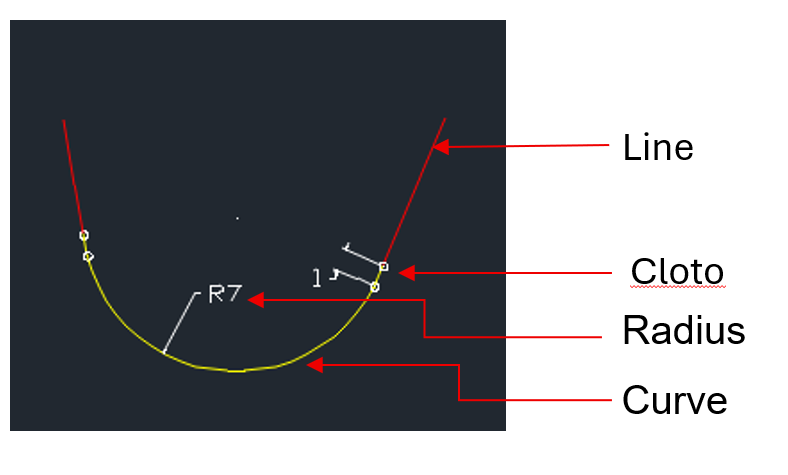
1. Line Line Curve - Connecting a curve between two lines.
Press this button or from the main menu go to Roads->Horizontal alignment tools->Line_Line_Curve. AutoCAD/ZWCAD will display: "Select first line", select the first line from the drawing. AutoCAD/ZWCAD will display: "Select second line", select the second line from the drawing. AutoCAD/ZWCAD will display: "Enter cloto in (0)", Insert the length of the transition-curve in the entrance to the arc and press Enter. (Pressing enter without inserting a value will create an arc without a transition curve (Clot. length 0). AutoCAD/ZWCAD will display: "Enter radius", Insert the arc's radius value for the curve and press Enter. AutoCAD/ZWCAD will display: "Enter cloto out (0)", Insert the length of the transition-curve exiting the arc and press Enter. In case a wrong radius value was entered and a tangent between the lines can't be created, CivilCAD will display message: "Tangent not on line".
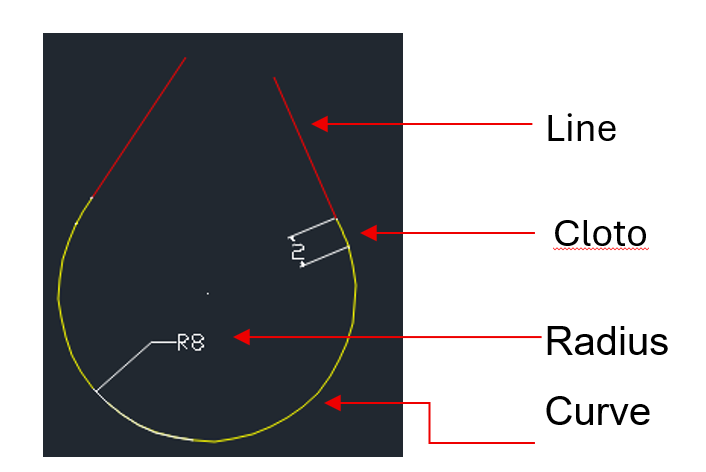
2. Line Line ReCurve - Connecting a reversed curve between two lines.
Press this button or from the main menu go to Roads->Horizontal alignment tools->Line_Line_ReCurve. AutoCAD/ZWCAD will display: "Select first line", select the first line from the drawing. AutoCAD/ZWCAD will display: "Select second line", select the second line from the drawing. AutoCAD/ZWCAD will display: "Enter cloto (0)", Insert the lengths for transition-curve in the entrance and exit of the arc (same length) and press Enter. AutoCAD/ZWCAD will display: "Enter radius", Insert the arc's radius value for the curve and press Enter. In case a wrong radius value was entered and a tangent between the lines can't be created, CivilCAD will display message: "Tangent not on line".
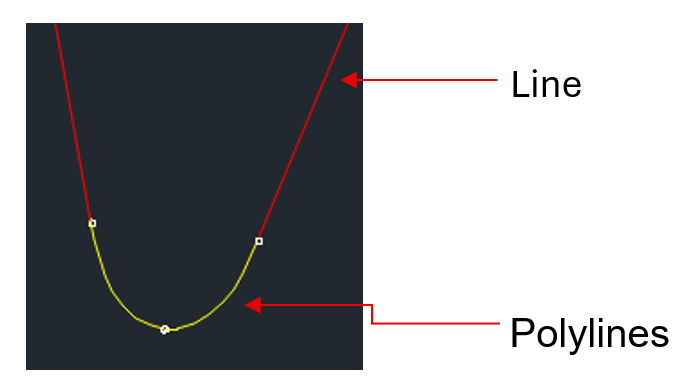
3. Line Line Fit Cloto (Radius) - Connecting a curve between two lines without arc, from 2 joined transition curves and by inserting their radius value.
Press this button or from the main menu go to Roads->Horizontal alignment tools->Line Line Fit Cloto (Radius). AutoCAD/ZWCAD will display: "Select first line", select the first line from the drawing. AutoCAD/ZWCAD will display: "Select second line", select the second line from the drawing. AutoCAD/ZWCAD will display: "Enter radius", Insert a maximum radius value for the curve and press Enter. In case a wrong radius value was entered and a tangent between the lines can't be created, CivilCAD will display message: "Tangent not on line".
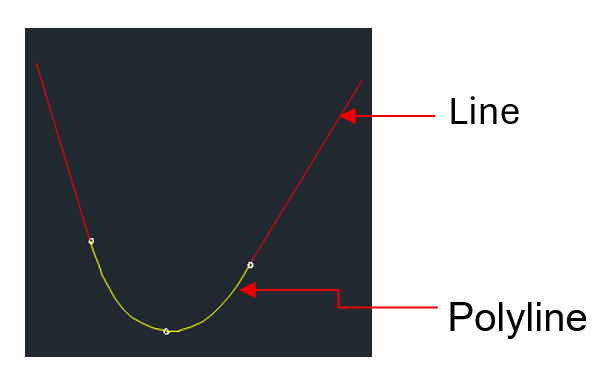
4. Line Line Fit Cloto (Len) - Connecting a curve between two lines without arc, from 2 joined transition curves and by inserting their length value.
Press this button or from the main menu: Roads->Horizontal alignment tools->Line_Line_Fit_Cloto(Len). AutoCAD/ZWCAD will display: "Select first line", select the first line from the drawing. AutoCAD/ZWCAD will display: "Select second line", select the second line from the drawing. AutoCAD/ZWCAD will display: "Enter cloto in (0)", Insert length for the first transition-curve and press Enter. AutoCAD/ZWCAD will display: "Enter cloto out (0)", Insert length for the second transition-curve and press Enter. In case wrong length values were entered, CivilCAD will display message: "Tangent not on line".
5. Line Line Fit ReCloto - Connecting a reversed curve between two lines without arc, from 2 joined transition curves and by inserting their radius value.
Press this button or from the main menu: Roads->Horizontal alignment tools->Line_Line_Fit_Recloto. AutoCAD/ZWCAD will display: "Select first line", select the first line from the drawing. AutoCAD/ZWCAD will display: "Select second line", select the second line from the drawing. AutoCAD/ZWCAD will display: "Enter radius", Insert a maximum radius value for the curve and press Enter. In case a wrong radius value was entered and a tangent between the lines can't be created, CivilCAD will display message: "Tangent not on line".
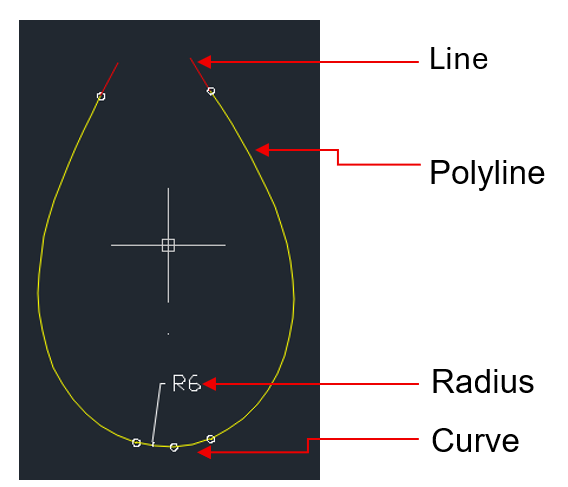
6. Line Arc Line Fit Cloto - Connecting a curve from two lines and arc, by transition-curves.
Press this button or from the main menu: Roads->Horizontal alignment tools->Line_Arc_Line_Fit_Cloto. AutoCAD/ZWCAD will display: "Select first line", select the first line from the drawing. AutoCAD/ZWCAD will display: "Select arc", select the arc from the drawing. AutoCAD/ZWCAD will display: "Select second line", select the second line from the drawing. In case the curve can't be solved, CivilCAD will display message: "Can't create requested segment ".
7. Line Arc Line Fit ReCloto - Connecting a reversed curve from two lines and arc, by transition-curves.
Press this button or from the main menu: Roads->Horizontal alignment tools->Line_Arc_Line_Fit_ReCloto. AutoCAD/ZWCAD will display: "Select first line", select the first line from the drawing. AutoCAD/ZWCAD will display: "Select arc", select the arc from the drawing. AutoCAD/ZWCAD will display: "Select second line", select the second line from the drawing. In case the curve can't be solved, CivilCAD will display message: "Can't create requested segment ".
8. Arc Arc Fit Tangent (Clo) - Connecting two arcs by tangent and two transition curves and by inserting the transition curves lengths.
Press this button or from the main menu: Roads->Horizontal alignment tools->Line_Arc_Line_Fit_Cloto. AutoCAD/ZWCAD will display: "Select first line", select the first line from the drawing. AutoCAD/ZWCAD will display: "Select arc", select the arc from the drawing. AutoCAD/ZWCAD will display: "Select second line", select the second line from the drawing. In case the curve can't be solved, CivilCAD` will display message: "Can't create requested segment ".
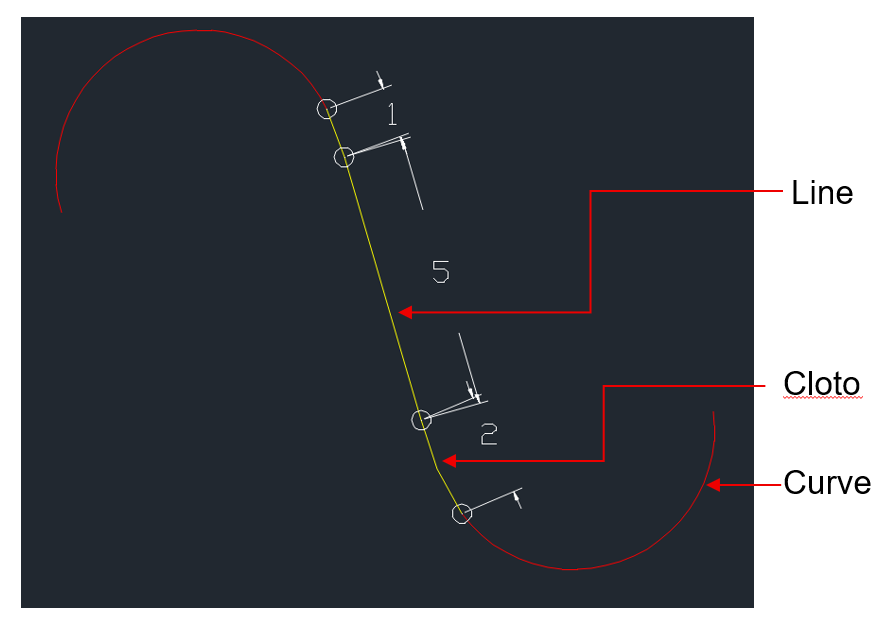
9. Arc Arc Fit Tangent (Len) - Connecting two arcs by tangent and two transition curves and by inserting the tangent's length.
Press this button or from the main menu: Roads->Horizontal alignment tools->Arc_Arc_Fit_Tangent(Len). AutoCAD/ZWCAD will display: "Select first arc", select the first arc from the drawing. AutoCAD/ZWCAD will display: "Select second arc", select the second arc from the drawing. AutoCAD/ZWCAD will display: "Enter length", Insert length for the line between the 2 tangents and press Enter. In case the curve can't be solved, CivilCAD will display message: "Can't create requested segment ".
10. Arc Point Fit Tangent - Connecting point to arc by tangent (completing tangent by selecting a point).
Press this button or from the main menu: Roads->Horizontal alignment tools->Arc_Point_Fit_Tangent. AutoCAD/ZWCAD will display: "Select arc", select the arc from the drawing. AutoCAD/ZWCAD will display: "Select point", select the end point of the tangent. AutoCAD/ZWCAD will display: "Enter cloto (0)", Insert length for the transition-curve exiting the arc and press Enter. In case of inserting irrational values, CivilCAD will display message: "Can't create requested segment ".
11. LineEdge Line Fit Arc - Connecting line-edge to a tangent by arc.
Press this button or from the main menu: Roads->Horizontal alignment tools->LineEdge_Line_Fit_Arc. AutoCAD/ZWCAD will display: "Select first line", select the line which its edge connects to the arc. AutoCAD/ZWCAD will display: "Select second", select the tangent to the arc.
* The arc will be connected to the Edge of the first line selected.
** The arc will be tangential to the second line selected.
*** No transition curves values will be given in this function.
12. LineEdge Point Fit Arc - Connecting line-edge to a specific point by arc.
Press this button or from the main menu: Roads->Horizontal alignment tools->LineEdge_Point_Fit_Arc. AutoCAD/ZWCAD will display: "Select first line", select the line which its edge connects to the arc. AutoCAD/ZWCAD will display: "Pick point", select the point which the arc will connect to.
13. LineEdge Radius Fit Arc - Connecting Line edge to arc by given radius.
Press this button or from the main menu: Roads->Horizontal alignment tools->LineEdge_Radius_Fit_Arc. AutoCAD/ZWCAD will display: "Select first line", select the line which its edge connects to the arc. AutoCAD/ZWCAD will display: "Pick side", select side to define the arc direction from the line (left or right). AutoCAD/ZWCAD will display: "Enter radius", Insert the arc's radius value and press Enter.
14. Arc Arc Fit Cloto -
15. Line_Arc Fit Clotho - Create a clothoid between line and arc.
Press this button or from the main menu: Roads->Horizontal alignment tools->Line_Arc_Fit Clotho. AutoCAD/ZWCAD will display: "Select line", select the line which its edge connects to the arc. AutoCAD/ZWCAD will display: "Select arc", select the arc. CivilCAD will create a line and an arc with a clothoid between them.
16. Connect arc - Connect two arcs in a row.
Press this button or from the main menu: Roads->Horizontal alignment tools->Connect arc. AutoCAD/ZWCAD will display: "Select first arc", select the first arc from the drawing. AutoCAD/ZWCAD will display: "Select second arc", select the second arc from the drawing. CivilCAD will create two arcs with in a row.
How Did We Do?
Horizontal Alignment Options
Changing the Horizontal Alignment